
WhatsApp integration for OpenCart
Help shoppers find the right product or pickup location on each of your shops. Start with the active storefront theme on your OpenCart version.
- Storefront chat
- Your theme maintainer adds the snippet to the active footer and checks the widget on each shop domain.
- WhatsApp AI chat
- Your team connects its business number in bitbybit and gives the agent your store policies.
- Order updates
- Your developer connects store data for private order lookups and shipping messages.

 Store assistant
Can I collect this camera at your shop?
Our pickup guide lists the locations for this shop.
What do you want to connect?
Add chat to the active theme
Select the right widget key per store and test the shopper conversation on each domain.
Read the guide Order-history extensionSend a verified dispatch update
This developer recipe uses OpenCart 4.1.0.3. Check the saved dispatch status and test payment-extension changes on your installed version.
Read the guide Store-specific audienceKeep campaigns with the right shop
Match recipients to the brand they opted into and route replies to the team that owns the campaign.
Read the guideWhere does a WhatsApp reply go?
Maya asks Willow Store about exchanging a gift. A teammate replies in bitChat, and Maya reads the answer on her phone. Both views show the same fictional conversation.
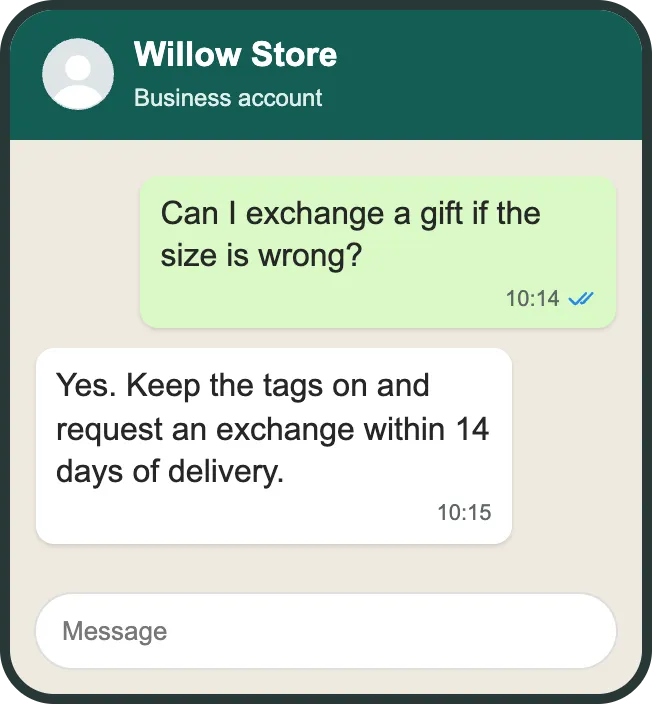
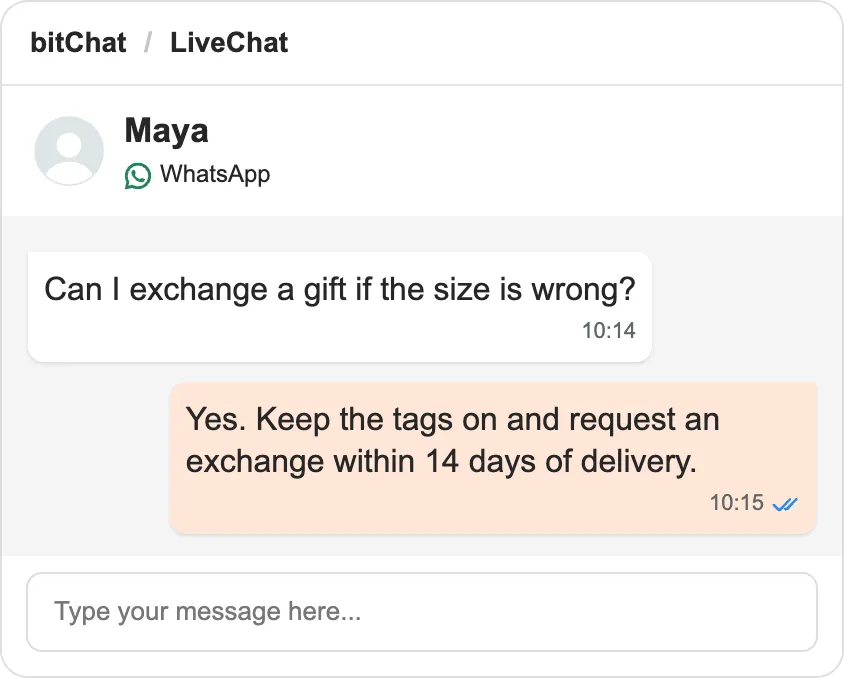
Try it with your team. Message your connected number from a test phone. Open the conversation in bitChat LiveChat, send a reply and check that it reaches the same phone.
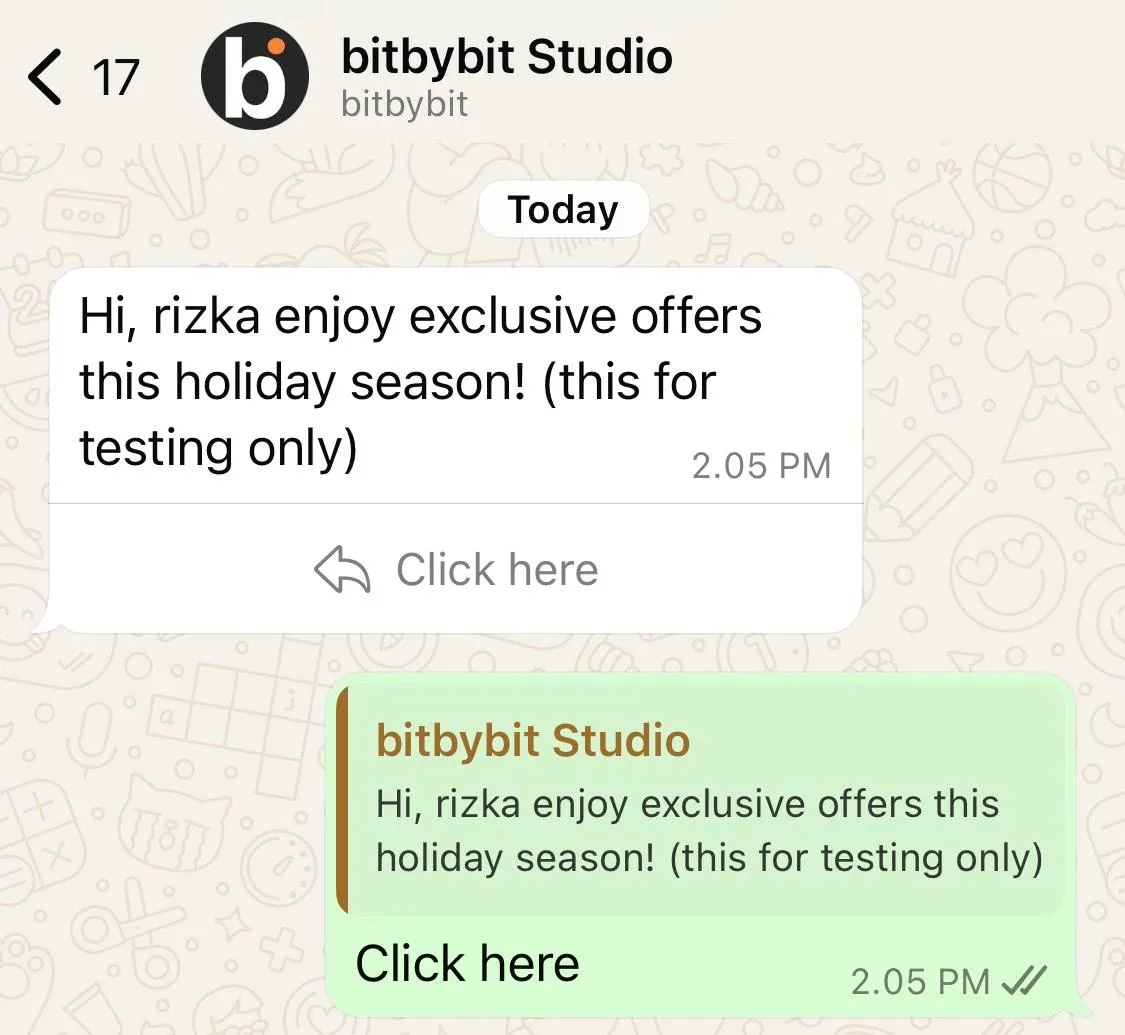
View the original WhatsApp delivery test
What else can you do with OpenCart?
Bring a shopper into a conversation, help them finish a cart, or give a returning customer a reason to come back. Choose the workflow you want to try.
Turn social visits into product questionsbitLink · Merchant setup
Use your profile link to show the camera range and a WhatsApp button for lens compatibility. Point each shop’s page to its own domain and number.
- In bitLink, choose Add Section → WhatsApp. Enter the business number connected to bitChat, give the button a specific label such as “Ask about this product”, and save.
- Add a regular link to the relevant OpenCart product or collection. Publish your bitLink URL in your social bio.
- Open the bio on a phone. Check the product destination, then tap WhatsApp and send a question. Look for that message in bitChat.
Recover an abandoned cart on WhatsAppStore event + Messaging API · Developer setup
Give a shopper who paused at checkout a way back to their basket and a chance to ask for help.
- Have your extension record the OpenCart store, checkout session and last cart activity when the buyer shares a number and opts in. Link that record to the eventual order. A guest session can expire, so test your return link on a second device.
- Choose how long to wait. Your connector needs the cart reference, last activity, a store-issued recovery link, the buyer’s phone and their permission for WhatsApp marketing. Skip anonymous carts, opt-outs and completed checkouts.
- Immediately before sending, recheck eligibility. Send one approved marketing template through the bitbybit Messaging API and record the reminder against that cart to prevent repeats.
Try it. Leave one opted-in test cart unfinished and complete another before the delay ends. Only the unfinished cart should receive a reminder. Open its link on your phone and check the items and quantities.
Bring members back with a loyalty rewardbitCRM campaign · Merchant setup
Invite camera buyers with an earned store reward to use it on accessories. For a multi-store setup, test redemption in the shop that issued the reward.
- Start with your existing rewards program. Export eligible members who have agreed to WhatsApp offers. Remove anyone who opted out or whose reward has expired or been used.
- Import that audience into bitCRM and select it for a WhatsApp campaign. Use an approved marketing template that explains the benefit, where to claim it and any expiry. Link to your own store’s rewards page.
- Send to a team member first. Open the link, sign in as the test member and apply the reward at checkout. Check the discount and remaining balance in the system that issued it.
Using bitLoyalty? Native program setup covers Shopify and bitbybit Commerce. For a custom connection, first confirm loyalty access in your workspace. Have your developer map one test member to a bitbybit customer, read their wallet, then test a points adjustment and its reversal. Applying a reward in OpenCart checkout is a separate store integration.
How does a shipping update reach WhatsApp?
Your store knows when the parcel ships. A developer connects that event to the approved message your customer receives.
- OpenCart
The order ships
An OpenCart 4.1.0.3 extension listens after the order-history model call. It reads the status the store actually saved.
catalog/model/checkout/order.addHistory/after - Your connector
Check the recipient
Match the saved store ID and dispatch status to this workspace. Check permission and suppress repeat history entries before sending.
- bitbybit
Send the update
The Messaging API sends your approved WhatsApp template with the buyer’s order reference.
Template API reference ↗
Before you connect.
Last reviewed: 2026-11-22 ·Back to all integrations